
 @zhang-guo-wen
dsh-worktree
Git worktree isolation for DeepSeek Harness: create a worktree, register it as its own project, and start the session inside it
- Stars
- 0
- Language
- TypeScript
- Created
- Sep 23, 2026
- Updated
- Oct 16, 2026
Introduction
@guowenzhang/dsh-worktree
English | 中文
Why this plugin
Our project spans multiple repositories and needs parallel development. Git worktrees provide isolated workspaces so file changes from different tasks do not interfere with each other.
This plugin lets you tick worktree on the DeepSeek Harness (DSH) New Session screen to create an isolated workspace and start a session inside it. It can also set up submodules and nested repositories alongside the parent checkout.
In the plugin list, display names and descriptions follow the Harness language setting in English or Chinese (English is the default fallback); English names use the package name without its npm scope, Chinese names describe the purpose, and installation still uses the unchanged real package name.
Screenshots
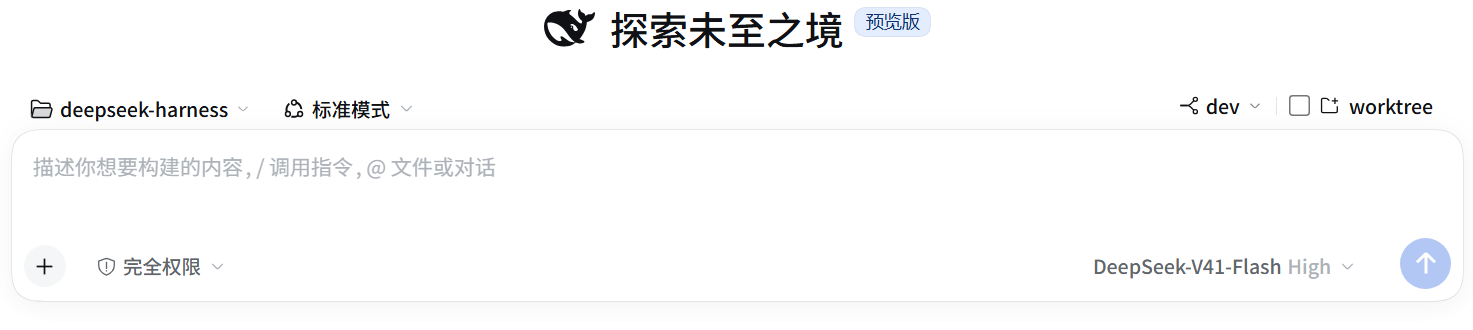
Select a base branch and tick worktree to create a workspace and open the new session. Unsent text, references, and attachments move with it without being submitted; a failed creation or navigation preserves the original draft.
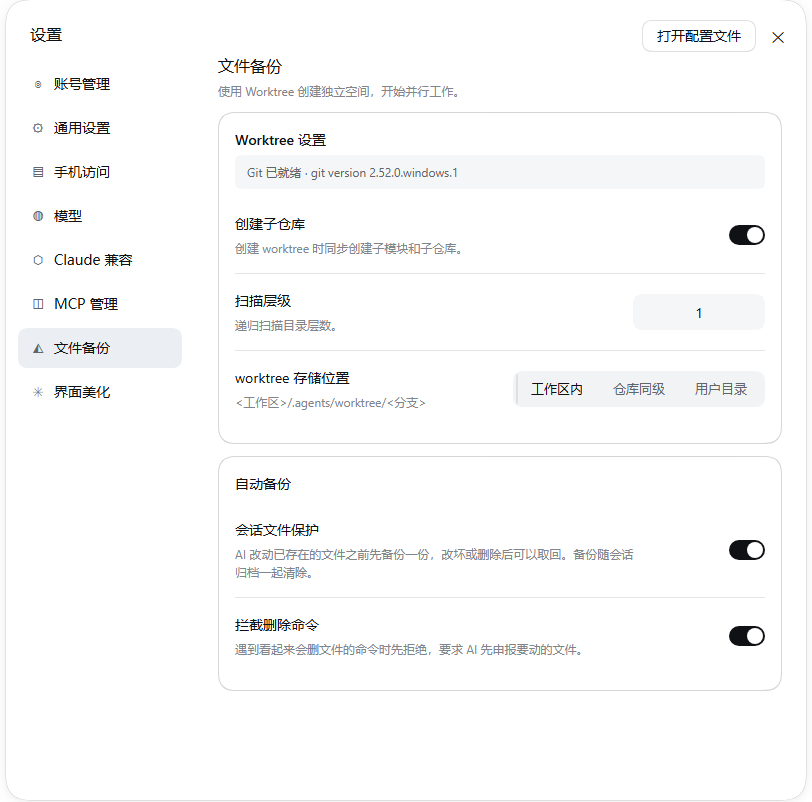
The settings page carries two cards: Worktree settings on top for whether new sessions start in a worktree, child repositories, scan depth, and storage location, and Automatic backup below for the protection switches and the backup page. Valid changes save automatically and take effect immediately; no Save or Reset to default button is needed.
Protection before a change
On by default. The first time the AI is about to change a file that already exists, that file's current content is copied out of the workspace — so a bad edit or a deletion can still be recovered.
The Automatic backup card on the settings page has three switch rows: Session file protection (on by default), Block delete commands (on by default), and Show the backup sidebar (on by default). Changes take effect immediately, with no restart.
Copies live in ~/.agents/file-guard/<session hash>/ and mirror the workspace layout, so recovery is copying the file back: no tool and no index needed. Files outside the working directory (another folder, another drive) go under external/ with their own path preserved. The copy is byte-level, so format does not matter: .docx, .pptx, and .xlsx are treated exactly like .txt.
Two things trigger a copy:
- Automatic: only
writeandeditcopy their target before the write, at about 1 ms per file. Read-only tools such asreadandread_imagedo not create backups. - Declared by the model: before changing files whose targets no argument names, the AI is asked to call the
worktree_backuptool with those paths. It has no scope limit — paths outside the working directory and on other drives are accepted. The result names the copy's absolute path, so restoring a file never requires searching for it.
Destructive shell commands are refused once. A bash / pwsh command that looks like it deletes files (rm, del, rd, Remove-Item, and so on) is denied, and the model is told to declare its targets through worktree_backup before retrying — a deletion cannot be recovered after it runs. Quoted spans do not count, so echo "rm -rf /" is not refused. The switch can be turned off in settings.
Rules worth knowing:
- One copy per file. A later change in the same session does not replace it, because the version worth keeping is the one from before the first change.
- Only files that already exist. A file the AI creates has no prior state. It is copied when a later session changes it — by then it exists.
- One directory per session, deleted when the session is archived. The archive's own durable write is the trigger, so the copies go as soon as it lands — a plain archive and a stop-and-archive behave the same. Failures log the session, directory, and reason and retry on later archive-related events; cancelling tools cannot recreate an archived session's backups. Only an archive that happens while the host runs is cleaned; earlier ones are never deleted retroactively.
- No size cap. One full set of copies is roughly the size of the workspace; measured on one machine, 243,529 files came to 12.72 GB.
- Writes outside the working directory are not automatic, so they rely on the AI declaring them through
worktree_backup. A change the AI never declares is not copied — which is why destructive commands are refused until it declares them.
For complete history, or recovery across machines and time, use Git commits. This feature exists for "the AI just broke this and I want the previous version back".
Restoring from the sidebar
On by default. The right sidebar offers a File backup page — open it from the sidebar's own Start page, and use the page-refresh shortcut inside it to read the list again. It lists the files this session changed or deleted, one flat row each and no directory tree, with only the path and a Restore button, without state badges. Deleted paths are struck through; a successful restore removes the strike.
- Modified means the file's content no longer matches its copy; Deleted means the file is gone. A copy whose file is still byte-identical is left out, because there is nothing to restore.
- Restore writes that one copy back over its file, creating the directories again if the file had been deleted. The copy itself is kept, so the same row can put the file back after a later change.
- Each row reports its own outcome — restoring, restored, or the Host's reason for a refusal. A restored row disappears on the next read, because the file then matches its copy.
- The list covers this session's copies only: they live and die with the session.
- The Show the backup sidebar switch turns the page itself on or off. Off, it is not registered at all — no tab type and no entry on the sidebar's Start page — so the sidebar keeps only the pages you chose. A tab opened before the switch was turned off keeps its "nothing here can view this" notice until it is closed.
Install
npx @deepseek-ai/dsh plugin --profile web add @guowenzhang/dsh-worktree
Restart DSH after installation. Git must be installed and available on the host's PATH.
Notes
-
Upgrading to 2.x: model-facing Worktree tools have been removed. Create worktrees through the New Session control; archive notifications may clean up clean worktrees. Integrations that call the removed model tools must be updated.
-
Multi-repository support is off by default: enable “Create child repositories” in settings and adjust the scan depth to your directory layout (default: 1 level). Submodules use the commit recorded by the parent repository in detached HEAD; independent nested repositories get new branches.
-
Uncommitted changes are not copied: the worktree starts from a commit on the selected branch, with an automatically generated branch name.
-
Storage defaults to inside the workspace:
<workspace>/.agents/worktree/<branch>. Add.agents/worktree/to your Git ignore rules, or choose a location beside the repository or in the user home directory. -
New sessions can start in a worktree automatically: with “Start new sessions in a worktree” on, the first blank session in a repository creates its own checkout and moves into it, without asking. Off by default.
-
Archiving may clean up the worktree: the archive's durable write triggers a removal attempt right away — a plain archive and a stop-and-archive alike. Uncommitted changes prevent removal, and branches are kept. Stopping the host does not clean up worktrees; manually removing a workspace registration does not delete files either.
-
Check that no other session is using the directory before cleanup: worktree removal does not check for running sessions.
See AGENTS.md for other installation methods, configuration, and development details.
License
Apache-2.0; see also NOTICE.