
 @songer522
dsh-launcher
macOS menu bar app for the DeepSeek Harness web server, with a Host plugin that publishes the running server's port, PID and tokenized URL
- Stars
- 1
- Language
- Swift
- Created
- Sep 8, 2026
- Updated
- Sep 12, 2026
Introduction
DSH Launcher
English · 简体中文
[!IMPORTANT] Arrived from the plugin market? This plugin belongs to a macOS app. On its own it only writes a small JSON file describing the running server — that is deliberate, and it is all it does. The thing you actually interact with is a macOS menu bar app, built from this repository with
./build.sh. Install the app first; see Install. Not on macOS? The plugin runs anywhere, but nothing here will be useful to you without the app.
A tiny macOS menu bar utility for a local development server: start it, open it in your browser, restart it, or stop it — without touching a terminal.
It lives in the status bar with no Dock icon, so it stays out of your way.
Written for DeepSeek Harness
(pnpm dsh web), but the command, port, project folder and browser are all
configurable, so it works for any long-running local server.
Native AppKit, single Swift file, no dependencies.
It ships with a small companion DSH plugin so the app learns the server's port, PID and tokenized URL from the server itself rather than by reading its log. See DSH plugin.
https://github.com/user-attachments/assets/153503d2-c5b8-4d74-aaff-aa20f18bf6de
Why I built this
The itch was simple: every time I wanted to use DeepSeek Harness, running it from source meant running it from a terminal.
cd ~/Workspace/deepseek-harness
pnpm dsh web
The command itself is small — but the ceremony around it wasn't. The terminal tab had to stay open for the whole session; pulling new changes meant going back to it, killing the server, and starting it again; the URL with its per-process token had to be copied out of the logs; and when the session was over the server had to be stopped by hand or it kept squatting on the port.
All the actual work happens in a browser tab. The terminal was never the point of the tool — it was just the tollbooth in front of it. So I gave that ceremony a menu bar icon instead: one click to start, one click to open the browser, restart after an update, and a confirmed stop — with the server's state visible at a glance and no Dock icon in the way.
Trying to do this properly from a GUI app is also what surfaced the sharp
edges that the terminal had been silently papering over — a GUI app inherits no
shell PATH, DSH's launch token must survive into the opened tab, and stopping
must target only the process listening on the port. Those are documented under
How it works.
Menu bar
The status icon is the DeepSeek whale, drawn as a template image so macOS tints it for light and dark menu bars. It shows server state at a glance — solid when running, dimmed when stopped — and everything is one click away:
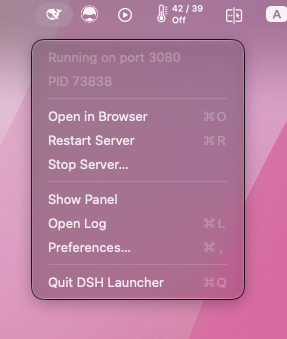
The two dimmed lines at the top are status, not actions: server state (Running on port 3080, Not running, or a transient Starting… / Stopping…) and the PID.
When the server is stopped, the menu shows Start Server instead.
State is polled every 3 seconds, so the icon stays correct even when you start or stop the server from a terminal.
Panel (optional)
Show Panel opens a small window with the same actions:
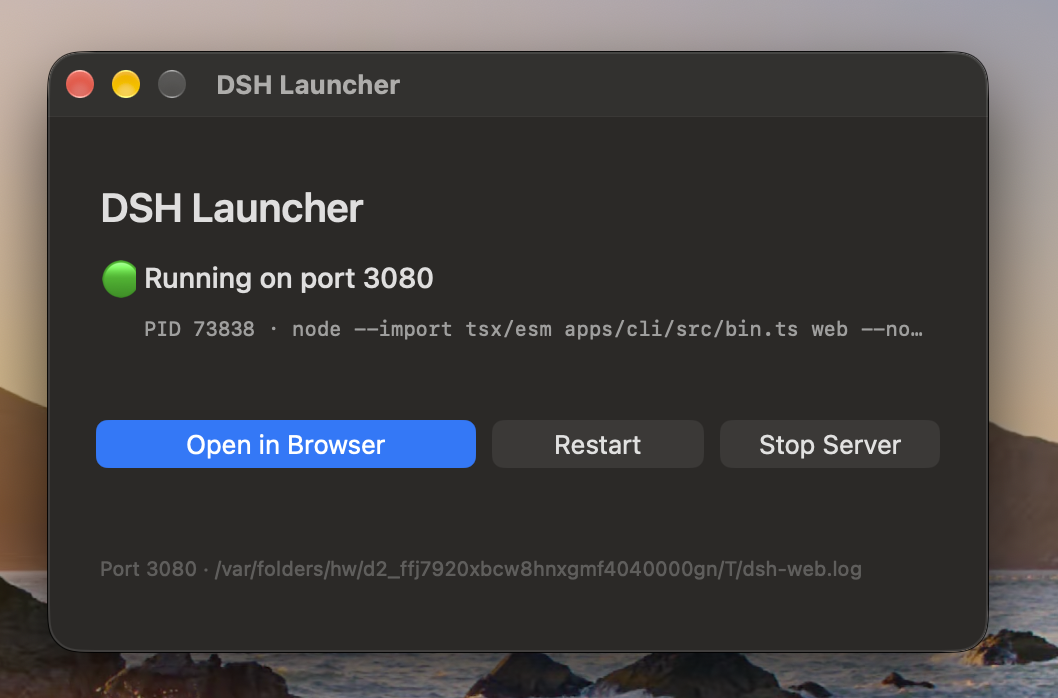
Closing the panel does not quit the app — it stays in the menu bar.
Note the window controls: close and minimize are enabled, while zoom/fullscreen is deliberately greyed out — this is a fixed-size panel, and stretching it full-screen would only add empty space.
Install
This repository ships two independent pieces, and it is worth being clear about which is which:
| Piece | What it is | Installed by | Required? |
|---|---|---|---|
| The app | a macOS menu bar app | ./build.sh | yes — it is the launcher |
| The plugin | a DSH plugin (dsh-menubar-launcher) | dsh plugin add | no — recommended |
The app is the product. The plugin is a small helper that runs inside the server and tells the app the URL to open. The app works without it; see Do I need the plugin? for exactly what changes.
1. Install the app
Requires macOS 13+ and the Xcode Command Line Tools (xcode-select --install).
git clone https://github.com/songer522/dsh-launcher.git
cd dsh-launcher
./build.sh
That compiles, bundles, signs, and installs to /Applications. Launch it from
there — it appears in the menu bar, with no Dock icon.
./build.sh --dev        # build into ./build without installing
./build.sh --uninstall  # remove the installed app
2. Install the plugin (recommended)
dsh plugin --profile web add https://github.com/songer522/dsh-launcher/releases/latest/download/dsh-menubar-launcher.tgz
Then restart the server — from the app's Restart menu item, or by stopping and starting it however you normally do. A plugin is composed when the server starts, so a server that was already running does not have it, and nothing will appear until it restarts.
Verify it took effect:
cat ~/.config/dsh-launcher/runtime.json
A JSON object means it is working. "No such file or directory" means either the server has not been restarted since installing, or it is not running.
The plugin also appears under Settings → Plugins in the DSH web UI, as
dsh-menubar-launcher with a green active dot.
Use the same profile the app launches. The command above installs into the
webprofile, which is whatdsh weband the app's default command (pnpm dsh web …) both boot. If you changed the app's command in Preferences to use a different profile, pass that profile todsh plugin --profile <name> add …instead, or the server the app starts will not have the plugin.
To remove it: dsh plugin --profile web remove dsh-menubar-launcher.
Do I need the plugin?
No. The app has always resolved DSH's per-process token by reading the log of the server it started, and that still works. The plugin matters in the case that mechanism cannot cover — a server the app did not start:
| Situation | Without the plugin | With the plugin |
|---|---|---|
| You start the server from the app | ✅ works (reads its log) | ✅ works |
| The server was started from a terminal | ❌ opens a tab that 401s | ✅ works |
| The server was started before the app | ❌ opens a tab that 401s | ✅ works |
So: install the app alone if you always start the server from the app. Add the
plugin if you also run dsh web from a terminal, or leave a server running
across app restarts.
Both paths are kept deliberately — the plugin is an improvement, not a requirement, and the app never assumes it is there.
Configuration
On first run the app looks for a DeepSeek Harness checkout in the usual places
(~/Workspace, ~/Projects, ~/Developer, ~/src, ~/code, ~). If your
project lives elsewhere, or you want to launch something entirely different,
open Preferences (⌘,).
Settings are stored as JSON at ~/.config/dsh-launcher/config.json:
{
  "repo": "/Users/you/Workspace/deepseek-harness",
  "command": "pnpm dsh web --no-open --port {port}",
  "port": "3080",
  "browser": "Google Chrome",
  "logFile": "/tmp/dsh-web.log",
  "language": "system"
}
| Field | Meaning |
|---|---|
repo | working directory the command runs in |
command | the launch command; {port} is substituted |
port | the port to watch, and to substitute into the command |
browser | app name to open, or "" for the system default |
logFile | where the server's stdout/stderr is written |
language | interface language: system, en, or zh-Hans |
Because it is just a command in a directory, it happily runs npm run dev,
vite, python -m http.server, or anything else.
Language
The interface is available in English and 简体中文. Choose one under Preferences (⌘,) → Language; it applies immediately, with no relaunch.
The default, System, follows macOS — Chinese when your preferred language is Chinese, English otherwise. The explicit choices exist because running one app in a different language from the rest of the system is common enough among developers to be worth a setting.
Why a launch flag matters
The stock command uses --no-open because DSH otherwise opens the URL in the
system default browser. Suppressing that and opening the browser here is
what lets you use Chrome while Safari remains your system default.
DSH plugin
The app can manage a server it did not start — but then it has no log to read, and DSH's per-process token lives only in that log. The result was a menu item that opened a tab answering 401.
This repository therefore also ships a Host plugin. It runs inside the
harness, where the port and the token are not parsed but simply known, and
writes them where the app can find them. Install it
with dsh plugin add; installing from source instead of the release tarball
works too, and needs no build step either:
dsh plugin --profile web add github:songer522/dsh-launcher
Once the server restarts, it writes ~/.config/dsh-launcher/runtime.json:
{
  "version": 1,
  "pid": 29185,
  "host": "127.0.0.1",
  "port": 3396,
  "url": "http://127.0.0.1:3396",
  "authenticatedUrl": "http://127.0.0.1:3396/?token=…",
  "startedAt": "2026-09-08T21:51:36.643Z"
}
The file is created once the server is listening and removed when it stops,
so its presence is itself a liveness signal. It is written 0600, and the
directory 0700: authenticatedUrl contains a launch token, which is a
credential granting full access to that harness. Treat it like one.
The app prefers this file and falls back to log parsing when it is absent, so
the plugin is optional — without it you get exactly the previous behaviour.
A descriptor is used only when the PID it names is the process currently
listening on the port, so a file left behind by a kill -9 is ignored rather
than used to open a dead tab.
The plugin is not macOS-specific: anything that wants the authenticated URL of a running harness can read the same file.
To move it, restate the row's whole config in your profile's
cordis.patch.yml (a patch replaces a row's config rather than merging into
it) — note that the app looks only at the default path:
- id: dsh-launcher-runtime
  config:
    path: /somewhere/else/runtime.json
    enabled: true
The plugin declares no dependencies at all, so it installs against any harness
version and needs no allowBuilds approval. In a profile without a web server
— headless, say — it simply does nothing and the harness boots normally.
Window behaviour
The app is a menu bar utility (LSUIElement), so it has no Dock icon and no
⌘Tab entry. Quit it from the menu bar.
For the optional panel:
| Control | State |
|---|---|
| Close (red) | enabled — hides the panel; app stays in the menu bar |
| Minimize (yellow) | enabled |
| Zoom / fullscreen (green) | disabled — fixed-size panel |
Fullscreen is suppressed both by omitting .resizable from the window's
styleMask and by adding .fullScreenNone to its collectionBehavior, so
⌃⌘F does nothing either.
The server is started detached, so quitting the launcher never stops it. Stopping is always an explicit, confirmed action — the server may be hosting live sessions.
How it works
Four details that are easy to get wrong:
1. GUI apps have no shell PATH. A double-clicked app does not read
~/.zshrc and does not inherit a login PATH, so pnpm would simply not be
found. Binaries are resolved explicitly against common install locations, with
a login-shell lookup as a fallback. The spawned server also gets those
directories prepended to its PATH: resolving pnpm alone is not enough,
because it execs node, which would otherwise fail with
env: node: No such file or directory.
2. Authentication tokens must be carried over. DSH mints a per-process launch token and prints the URL with it; the bare origin answers HTTP 401, so the tab would be dead. The app resolves that URL from two sources, in order: the runtime descriptor written by the companion plugin, then the log this run printed. The descriptor is preferred because it is also correct for a server started from a terminal — the case where there is no log to read. Servers that publish neither fall back to the plain URL.
3. Port probing must filter for listeners. This app uses:
lsof -ti tcp:3080 -sTCP:LISTEN
Without -sTCP:LISTEN, lsof also reports every client connected to that
port — your browser, your editor — and acting on those PIDs would terminate
unrelated applications. Only one process can hold LISTEN on a port, so this
targets exactly the server no matter what its PID happens to be.
4. Stopping is graceful. TERM first, escalating to KILL only if the port
is still bound after ~6 seconds.
Development
Everything lives in one file: Sources/DSHLauncher.swift.
swiftc -O Sources/DSHLauncher.swift -o build/DSHLauncher && ./build/DSHLauncher
The code-signing gotcha
Nothing to do here if you are just installing — build.sh already gets this
right, and verifies the signature before it finishes. It matters only if you
edit the build script, so the reason the step order cannot be rearranged is
written down.
build.sh signs the bundle last, and that ordering is not cosmetic.
Modifying a bundle after signing — replacing the icon, editing Info.plist —
invalidates the signature, and macOS then refuses to treat the directory as an
application. The visible symptom is that Finder shows a folder icon, which
looks like an icon bug but is really a signature failure:
$ codesign -v "/Applications/DSH Launcher.app"
invalid Info.plist (plist or signature have been modified)
To see the icon macOS actually resolves, bypassing Finder's cache:
osascript -l JavaScript -e 'ObjC.import("AppKit");
var img=$.NSWorkspace.sharedWorkspace.iconForFile("/Applications/DSH Launcher.app");
var rep=$.NSBitmapImageRep.imageRepWithData(img.TIFFRepresentation);
rep.representationUsingTypeProperties($.NSPNGFileType,$()).writeToFileAtomically("/tmp/resolved.png",true);'
open /tmp/resolved.png
Shell equivalents
If you prefer the terminal, these do the same jobs. Two details matter: the
-sTCP:LISTEN filter, and capturing the tokenized URL instead of opening the
bare origin (which answers 401).
dshweb() {
  local port="${DSH_WEB_PORT:-3080}"
  local log="${TMPDIR:-/tmp}/dsh-web-${port}.log"
  : > "$log"   # a stale URL carries a dead token
  (cd ~/Workspace/deepseek-harness && pnpm dsh web --no-open --port "$port" > "$log" 2>&1) &
  local server=$!
  tail -f "$log" & local tailer=$!

  while ! nc -z 127.0.0.1 "$port" 2>/dev/null; do
    kill -0 "$server" 2>/dev/null || { kill "$tailer" 2>/dev/null; return 1; }
    sleep 0.3
  done

  # DSH prints `dsh web: http://127.0.0.1:PORT/?token=…` — open that, not the
  # bare origin. Prefer loopback and exclude brackets: the LAN URL is printed
  # on the same line inside parentheses.
  local url=""
  for _ in {1..40}; do
    url=$(grep -aoE "https?://[^[:space:]'\"()]*[?&]token=[^[:space:]'\"()]+" "$log" \
          | grep -E "127\.0\.0\.1|localhost" | tail -1)
    [ -n "$url" ] && break
    sleep 0.25
  done

  open -a "Google Chrome" "${url:-http://127.0.0.1:$port}"
  wait "$server"; kill "$tailer" 2>/dev/null
}

dshkill() { lsof -ti tcp:3080 -sTCP:LISTEN | xargs kill; }
Note that in zsh a background pipeline (cmd | tee log &) sets $! to tee
rather than the server, which breaks the liveness check — hence redirecting to a
log and tailing it separately.
Beware also that lsof -ti tcp:PORT without -sTCP:LISTEN matches clients
connected to the port too, so that widely-shared one-liner can kill your browser.