
 @baggiponte
dsh-session-nav
Previous/next session navigation for the DeepSeek Harness UI
- Stars
- 0
- Language
- JavaScript
- Created
- Oct 19, 2026
- Updated
- Oct 19, 2026
Introduction
dsh-session-nav
Move between DeepSeek Harness sessions with a keystroke.
DeepSeek Harness ships commands for New, Search, Rename, Fork and Archive session, but nothing for "next/previous session". This plugin adds two ordinary configurable commands that walk the session list.
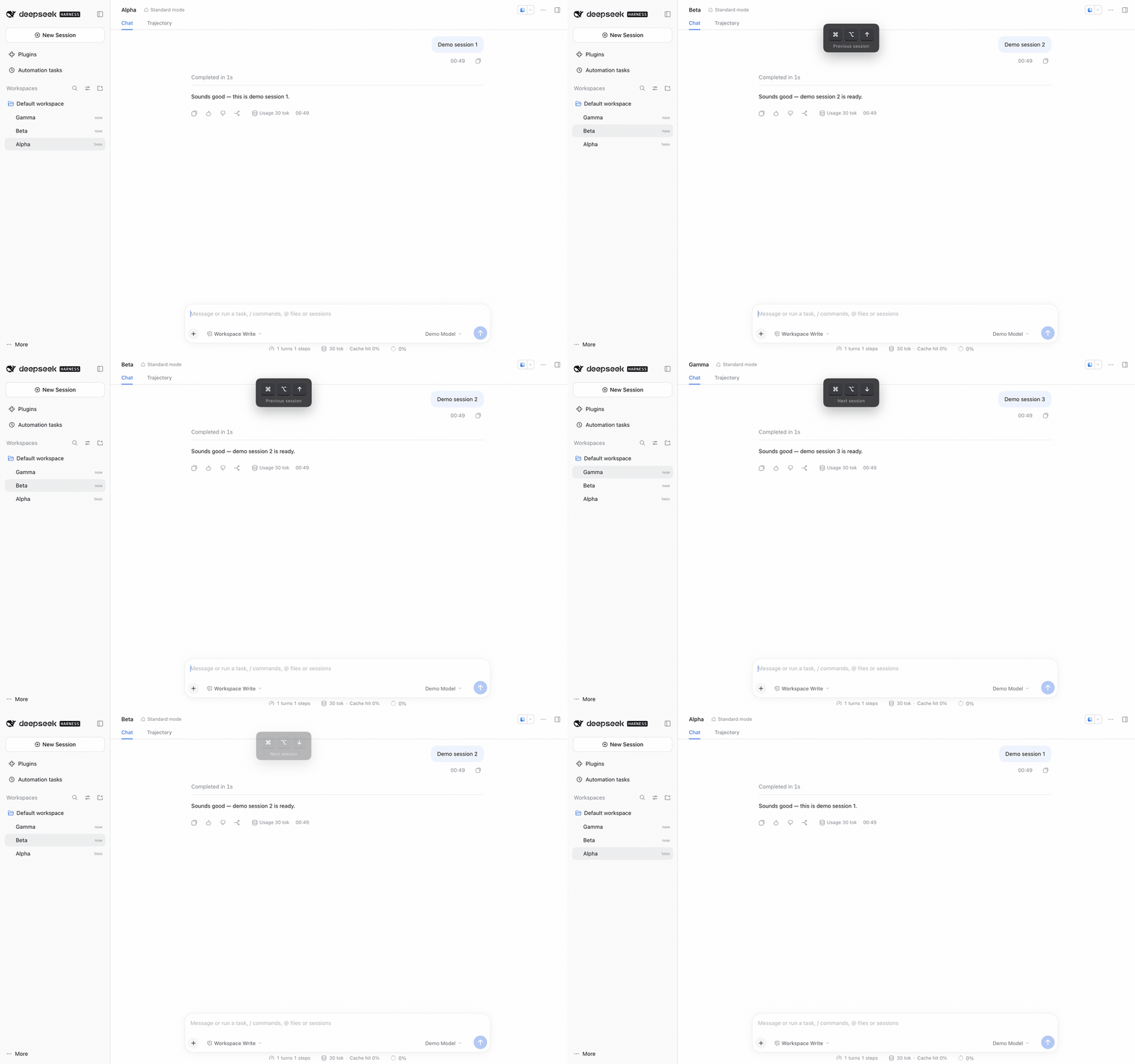
Recorded in a browser tab, where the defaults are ⌘⌥↑ / ⌘⌥↓. In the desktop
app the same commands default to ⌥↑ / ⌥↓.
Features
- Previous session / Next session commands, registered through the
normal shortcut system. They appear in the
⌘/shortcut reference and can be rebound there like any built-in command. - Follows the sidebar's visible order, so it respects workspace grouping and pinned sections. Falls back to most-recently-active order when the sidebar is not rendered (collapsed, or showing search results).
- Wraps at both ends; with two sessions the keys simply toggle.
- Skips archived and subagent sessions.
- Lets the chord through when there is nowhere to go, and stays out of terminals and dialogs.
Default keys
| Platform | Previous | Next |
|---|---|---|
| macOS desktop | ⌥↑ | ⌥↓ |
| Windows desktop | Alt+↑ | Alt+↓ |
| macOS browser tab | ⌘⌥↑ | ⌘⌥↓ |
| Windows browser tab | unbound | unbound |
Plain Option/Alt chords are on the Web reserved list, so macOS browser tabs use
the primary chord instead. Windows browser tabs stay unbound because
Ctrl+Alt+Arrow is claimed by some display drivers; bind any allowed
combination under ⌘/.
Install
Requires DeepSeek Harness with a profile you can add plugins to. The desktop
profile is managed by the Electron app, so use the Desktop-installed dsh
command for it.
-
Add the package to the profile:
dsh plugin --profile desktop add "github:baggiponte/dsh-session-nav"From a local clone, link it instead:
dsh plugin --profile desktop add "link:$PWD" -
Register the plugin row in the profile's
cordis.patch.yml(~/.dsh/profiles/desktop/cordis.patch.yml):- insert: - id: session-nav name: "dsh-session-nav" -
Reload the app page (
⌘R) or restart the app.
For a web profile, substitute --profile web and edit
~/.dsh/profiles/web/cordis.patch.yml.
The package has no build step: lib/client.js is the browser bundle the Client
Module Loader serves, and lib/index.js is the empty Host companion the Loader
needs to compose the row.
Customize
- Keys:
⌘/→ search "session" → click a row and record a new combination. Clearing it keeps the command and leaves it unbound. - Keep native Option+Arrow paragraph navigation in text fields: change
REGIONSinlib/client.jsto["page"]. - Order semantics: see
neighbour()inlib/client.js.
How it works
The bundle is a client-side DSH plugin. It registers two commands through
ctx.shortcuts.register(); when one fires it resolves the target session from
the sidebar rows (data-row-key="session:…", falling back to the session
controller ordered by updatedAt) and opens it with
uiWorkspace.openSession().
No host services, no React, no build tooling.
Development
node --test
The tests load the real bundle through a fake __ModuleLoader__ and exercise
registration, ordering, fallback, wrapping, archived filtering, and the
region/modal guards.
License
MIT